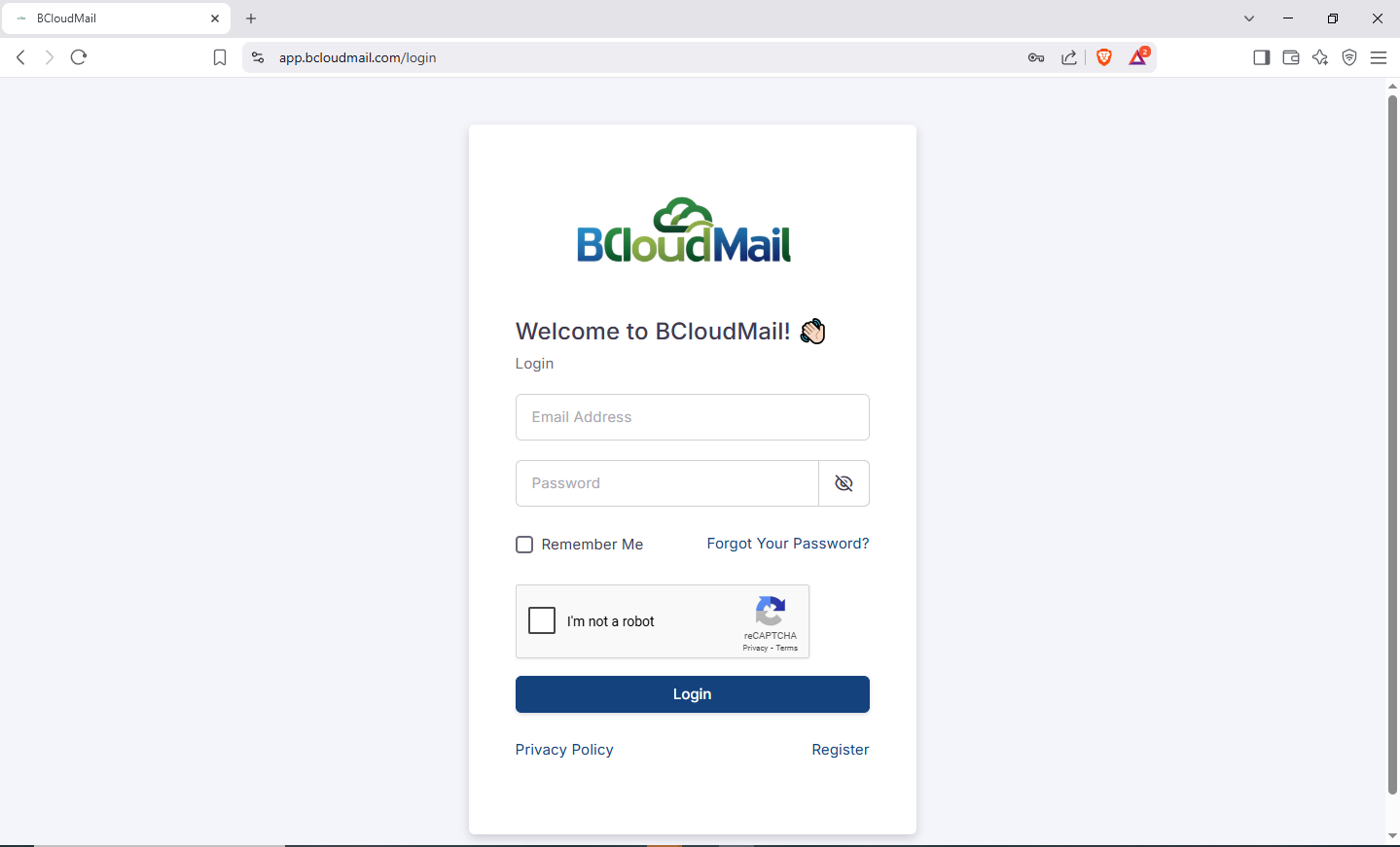
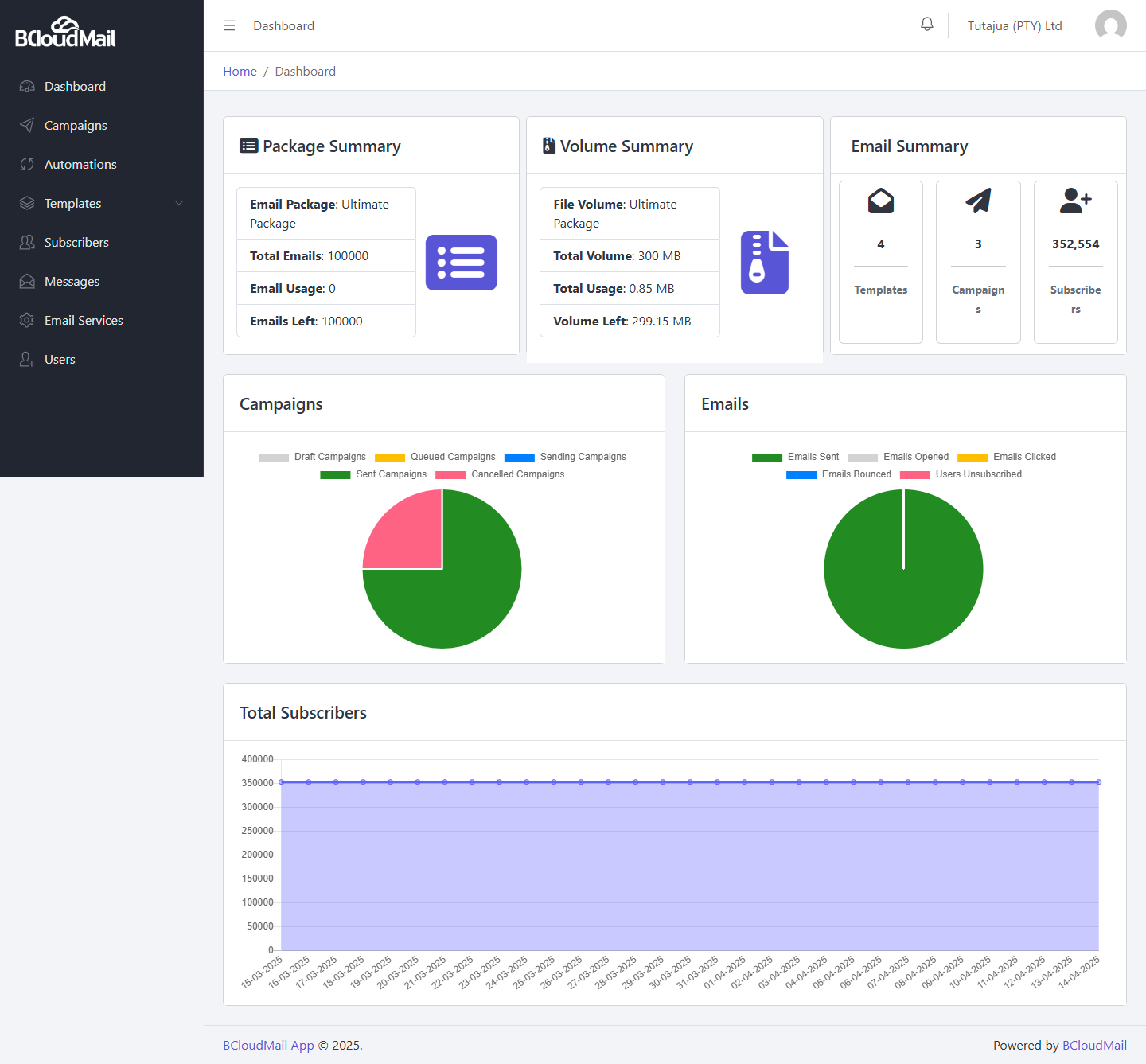
This page explains how to log in to your BcloudMail account and provides an overview of the key information you’ll find on your dashboard after successful login.
How to Log In:
- Open your web browser.
- Navigate to the BcloudMail web application login page: https://app.bcloudmail.com/login
- Enter your credentials:
- Email Address / Username: In the designated field, type the email address or username you used when you registered your BcloudMail account.
- Password: In the password field, carefully enter your account password. Ensure that Caps Lock is off.
- Click the “Log In” button. This button is usually clearly labeled.
- Successful Login: Upon successful verification of your credentials, you will be redirected to your BcloudMail Dashboard.
Understanding Your BcloudMail Dashboard:
Your dashboard provides a quick overview of your account status and key metrics. Here’s a breakdown of the sections you’ll typically see:
1. Package Summary:
This section displays information about the BcloudMail package you are currently subscribed to.
- Email Package: Shows the name of your current email package (e.g., Ultimate Package).
- Total Emails: Indicates the total number of emails you are allowed to send per month with your current package (e.g., 100000).
- Email Usage: Displays the number of emails you have sent so far in the current month (e.g., 0).
- Emails Left: Shows the remaining number of emails you can send this month (e.g., 100000). This is calculated as
Total Emails - Email Usage.
2. Volume Summary:
This section provides details about your file storage usage.
- File Volume: Shows the name of your current file storage package (e.g., Ultimate Package).
- Total Volume: Indicates the total storage space allocated to your account (e.g., 300 MB).
- Total Usage: Displays the amount of storage space you are currently using (e.g., 0.00 MB).
- Volume Left: Shows the remaining storage space available in your account (e.g., 300.00 MB). This is calculated as
Total Volume - Total Usage.
3. Email Summary:
This section provides a quick count of your key email marketing components.
- Templates: Displays the total number of email templates you have created (e.g., 0).
- Campaigns: Shows the total number of email campaigns you have created (e.g., 2).
- Subscribers: Indicates the total number of subscribers in your contact lists (e.g., 1,240).
Navigation:
From the dashboard, you can typically navigate to other sections of BcloudMail using the menu on the left-hand side or the top navigation bar. These sections may include:
- Templates: To create and manage your email templates.
- Campaigns: To create, schedule, and manage your email marketing campaigns.
- Subscribers: To manage your contact lists and subscriber information.
- Reports: To view the performance of your email campaigns.
- Settings: To manage your account details and preferences.
Troubleshooting Login Issues:
- Incorrect Credentials: Double-check that you have entered your email address/username and password correctly. Ensure there are no typos and that Caps Lock is off.
- Forgot Password: If you have forgotten your password, please use the “Forgot your password?” link on the login page to reset it. Follow the instructions sent to your registered email address.
- Account Issues: If you are still unable to log in, please contact our support team for assistance.
This dashboard provides a central point for you to monitor your BcloudMail usage and quickly access the key features of the application.